Some questions need a few lines of working before the answer. Scratch paper is a small floating sheet you open beside the worksheet, so you can work things out without writing in the answer box. Here is how it works.
What it is
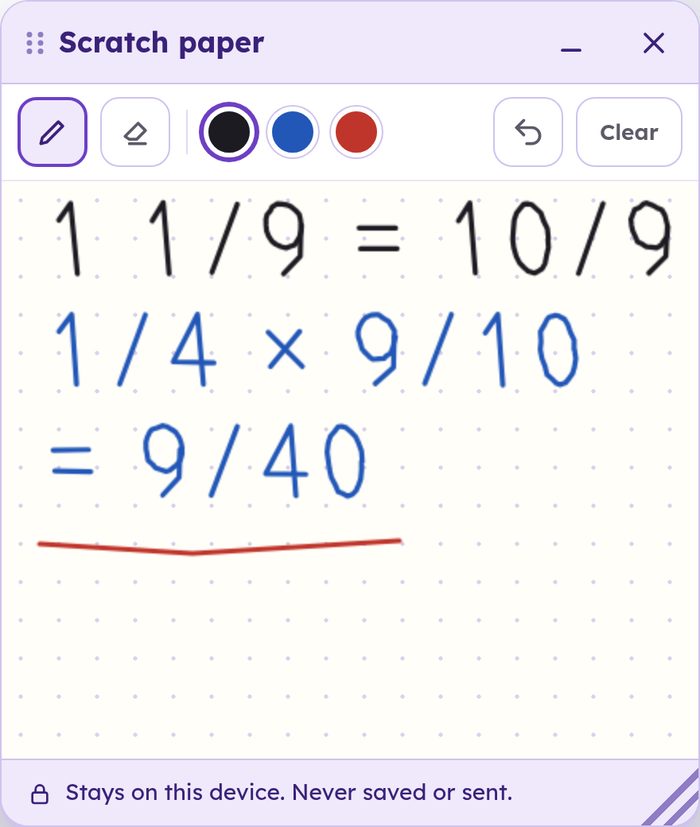
Scratch paper is a floating sheet with a dotted background, like the back of an envelope. You write on it with the same hand, Apple Pencil, stylus, mouse or finger. It sits on top of the worksheet, so the question stays in view while you work. Mathhh does not read it and does not mark it. Only the answer boxes on the worksheet are marked.
Where to find it
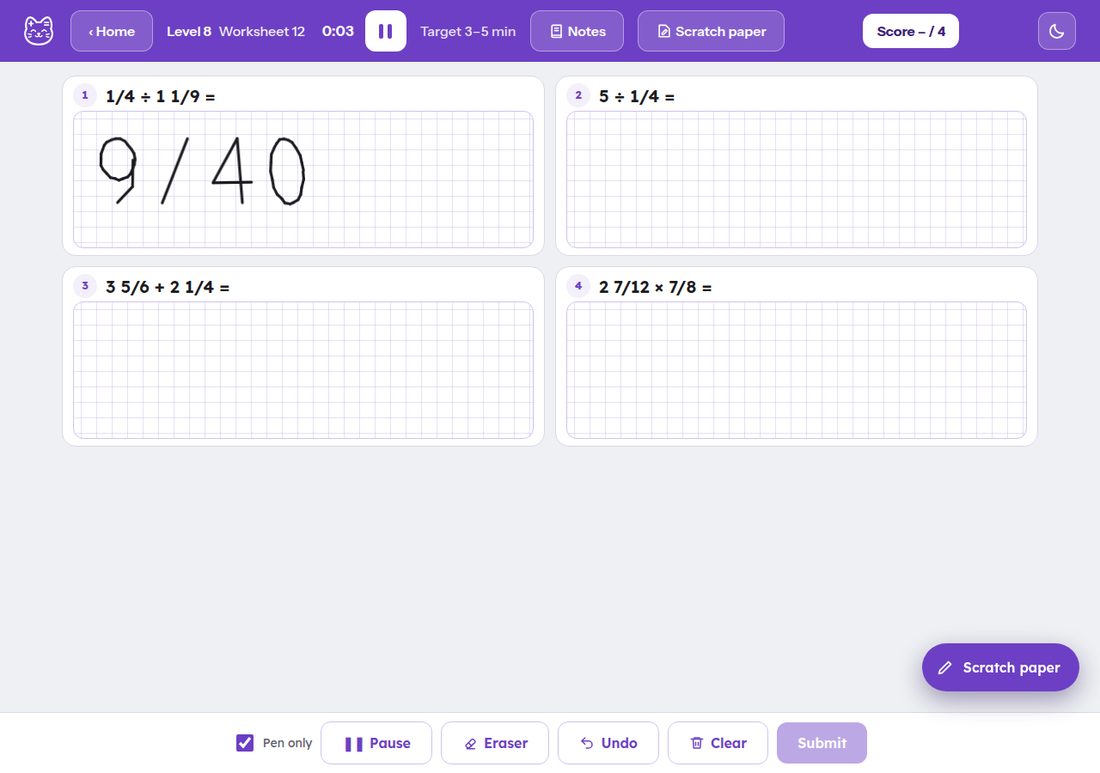
On a tablet or a computer, the worksheet header has a Scratch paper button, beside Notes. On a narrower tablet the button shows only the icon of a small sheet.
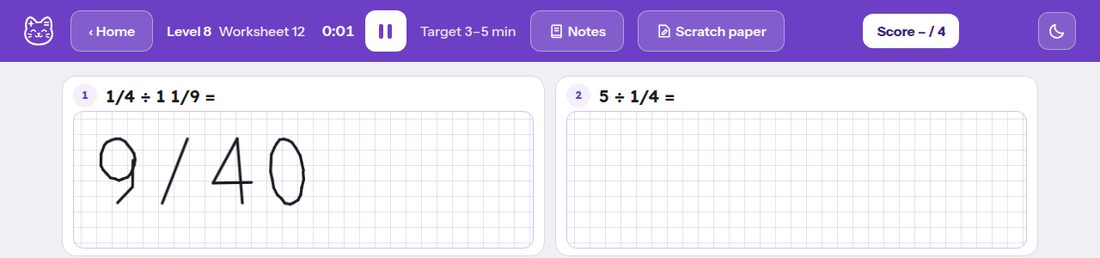
A phone screen is too small to hold a worksheet and a sheet of working side by side, so the button is not shown on a phone. Use paper beside the phone instead. Scratch paper appears on tablets and computers only.
Working something out
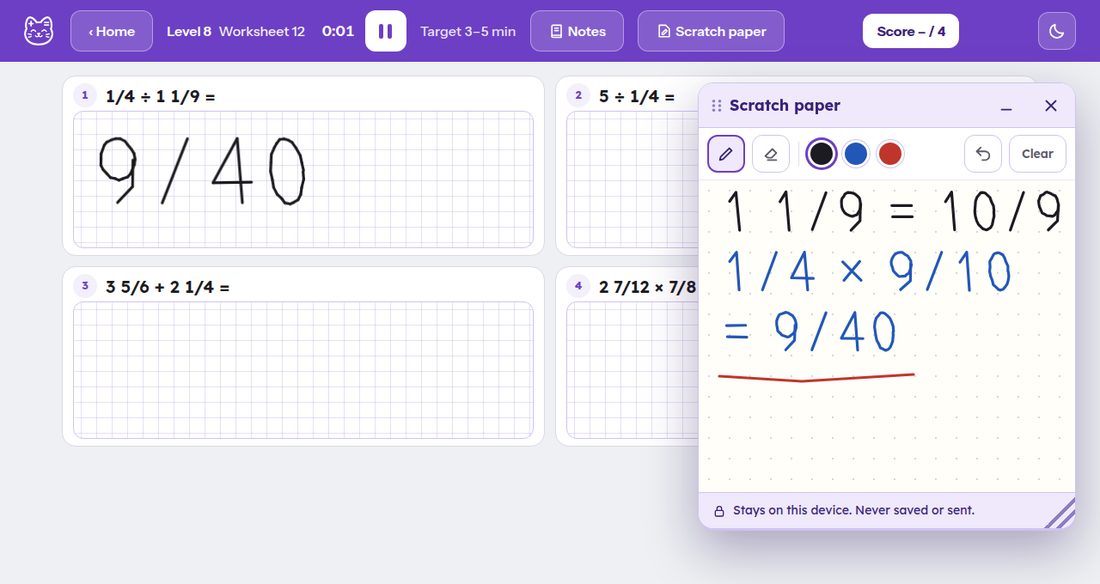
Press the button and the sheet opens beside the worksheet. Here a learner is working out 1/4 ÷ 1 1/9: change the mixed number to a fraction, flip it and multiply. The answer, 9/40, is then written in the answer box on the worksheet.
The tools
The bar under the title has what you need:
- Pen, with three ink colours: dark, blue and red. A different colour is handy for crossing out or checking.
- Eraser, which rubs out any line you touch.
- Undo, which brings back the last thing you drew or rubbed out.
- Clear, which wipes the sheet.
Move it, resize it, tuck it away
Drag the sheet by its title bar to put it anywhere that does not cover the question you are on. Pull the striped corner at the bottom right to make it bigger or smaller. If you want the whole worksheet back for a moment, press the minus button. The sheet shrinks to a Scratch paper chip in the corner, and your working is kept. Press the chip to bring the sheet back.
Closing it
The cross button closes the sheet. If there is writing on it, Mathhh asks Clear this and close? first, so a stray tap does not wipe the working. Choose Clear and close, or Keep it to go back. A sheet with nothing on it closes straight away.
Private by design
The footer of the sheet says it plainly: Stays on this device. Never saved or sent. What you write on scratch paper is not uploaded, not marked, not shown on the Dashboard and not kept. It lasts only while the worksheet is open. When you leave the worksheet, open the next one or refresh the page, the sheet is empty again. Scratch paper never changes your answers and never changes your score.
Scratch paper is a good habit to encourage on longer questions, such as fractions, long multiplication, algebra and word problems. Seeing the steps written down makes it easier to spot where a mistake started. If an answer is marked wrong, here is how corrections work.
New to Mathhh? The sign-up steps, with pictures, and writing by hand explain the rest of the worksheet.
Questions people ask
Is the scratch paper saved or sent anywhere?
No. It stays on the device and is never saved, uploaded or marked. It is empty again when you leave the worksheet or refresh the page.
Does Mathhh mark what I write on the scratch paper?
No. Only the answer boxes on the worksheet are marked. Scratch paper does not change your answers or your score.
Why is there no scratch paper on my phone?
A phone screen is too small for a worksheet and a sheet of working side by side. Scratch paper is shown on tablets and computers only.
Can I move or resize the scratch paper?
Yes. Drag it by the title bar and pull the corner to resize it. The minus button shrinks it to a chip, and your working is kept.
What tools does the scratch paper have?
A pen with three ink colours, an eraser, undo and clear.